
Short ol test
Actions Within an Explore Search
Within your Explore search, you will find a number of actions.
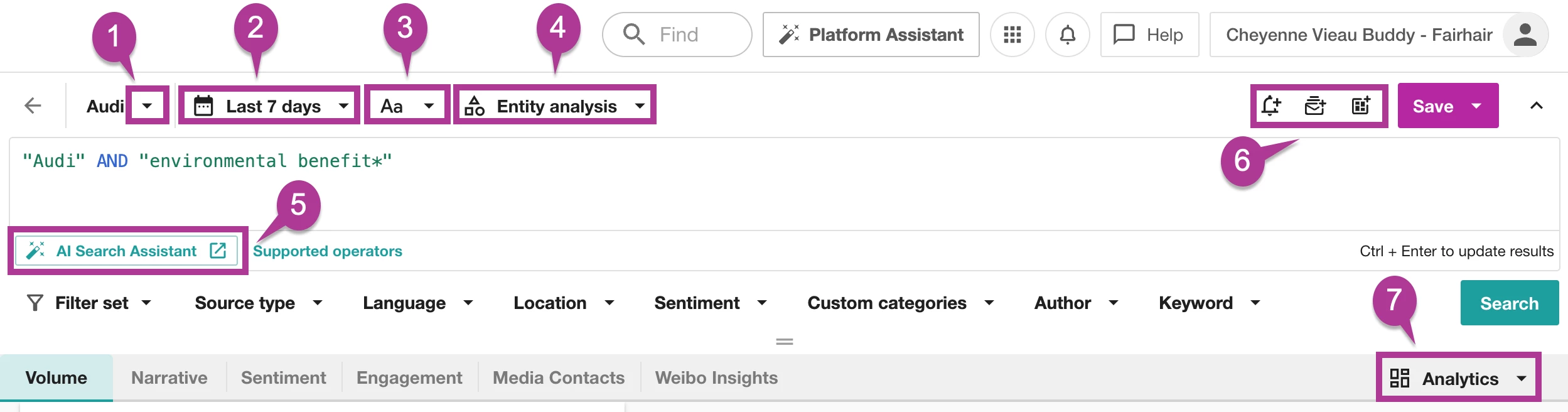
-
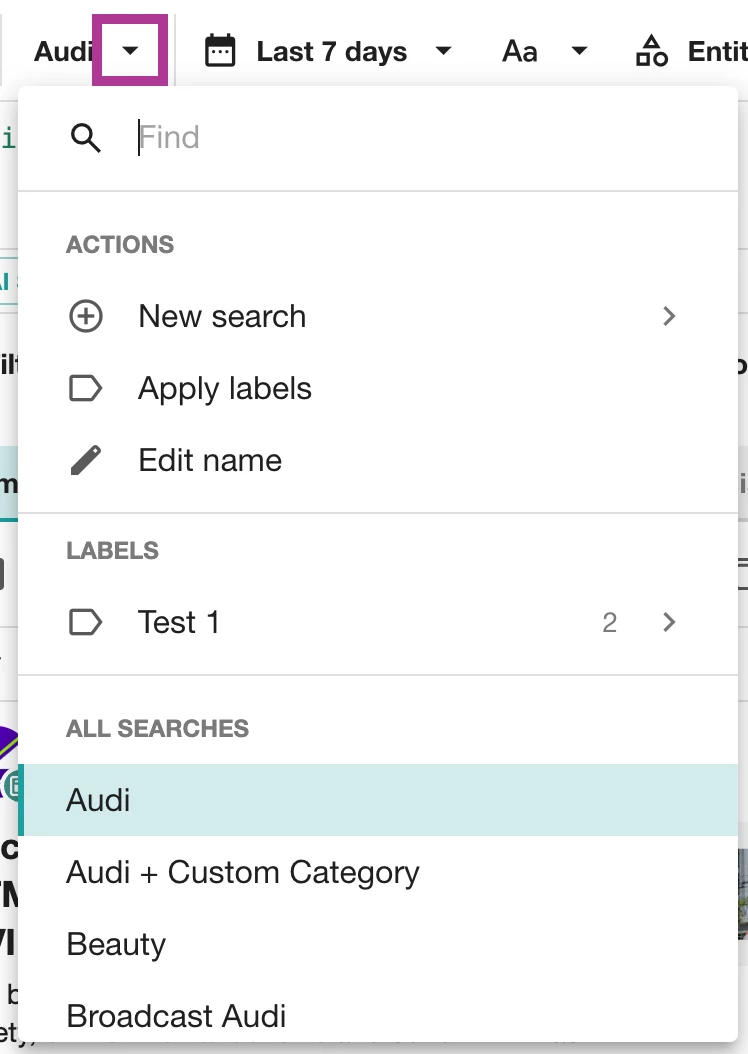
Search Name drop-down: within this drop-down are several additional search options
-
New search: after clicking on the arrow, you can choose between three options:
-
Keyword Search: Enter terms or phrases into the input boxes (All of these, At least one, and None of these). Our system will then create the search for you. This option is recommended for simple searches or for new users of the platform.
-
Advanced Search: Create a Boolean query using AND, OR, NOT, and other operators for more precise search results. (see our complete list of Boolean operators) This is best for advanced users familiar with Boolean syntax.
-
Combined Search: Combined Searches allows you to quickly combine your existing saved searches, filter sets, and custom categories into a new search.
-
-
Apply labels: Add the opened search to an existing or new label. Learn more about Using Labels in Explore.
-
Edit name: Rename the opened search. Click Save after any changes.
-
Labels: Take a look at the labels you have already created.
-
All Searches: Better understand your current saved searches in Explore. Click into any other search directly from this view.
-
-
Date Range: Adjust the date range to better reflect the results you want to drill into. There are pre-saved date ranges, or you can create a custom date range.
-
Case Sensitivity: Select the distinction between uppercase and lowercase letters in your search terms.
-
Off: Match all letter case variations in search terms
-
Match Case: Match exact case in search terms
-
Hybrid: Match only capital letters used in search terms
-
-
Entity Analysis: Entity-level sentiment captures the tone toward an entity, independent of the document's overall sentiment. Your preference will be saved with the search.
-
AI Search Assistant: The AI Search Assistant simplifies the search query writing process for users of all levels, writing high-quality searches faster and with less hassle, leading to more accurate results and time for making data-driven decisions.
-
Alerts and Dashboards: Create an alert, digest report, or report using the opened search directly from this view.
-
Analytics: Toggle between Classic Analytics and Brand Analytics for different views and metrics based on your search results.